Editing a Subproject Information
View Subproject Information Page
Edit a Subproject Name and Description
Add General / Virtual Asset to Subproject
Remove Asset / Move Asset to Another Subproject
Create Subproject from Subproject Information Page
Add / Edit / Delete Attachment to Subproject
Each Subproject has its own dedicated information page where you can find all the details and can edit these details as well.
View Subproject Information Page
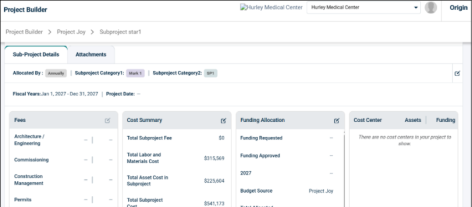
The Subproject Information page shows the subproject details, including name, description, status, assigned assets, category/attributes, attachments, and fund allocation.
-
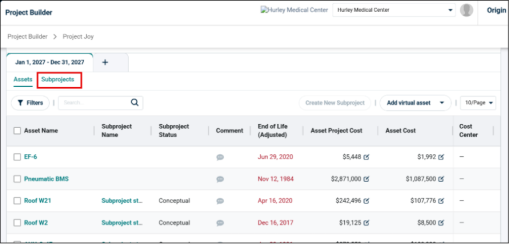
On the Project Information page, click the Subprojects tab.
-
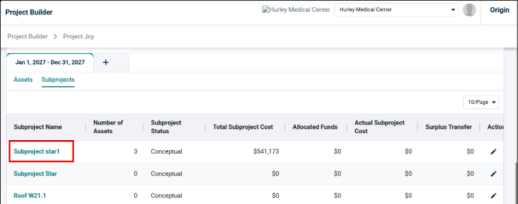
All the Subprojects are listed in the table along with the clickable link to open the details.
-
Click the required subproject name from the list to open the Subproject information page in new tab.
-
You can find the following sections here:
-
Subproject Summary
-
Asset List
-
Cost Summary
-
Fee
-
Fund Allocation (Public projects only)
-
Attachments
-
Things to Remember:
-
The page header shows a breadcrumb trail (e.g.,Organization > Project Name > Subproject Name). Long names are truncated with the full name visible on hover.
-
All sections on this page update in real-time when assets are added, removed, or modified.
-
If the Subproject is in Completed status, the page becomes read-only and no further edits are allowed.
-
Discard Changes and Update Assets controls only exist at the main project level, and only cascade to Subprojects in Conceptual status.
Edit a Subproject Name and Description
-
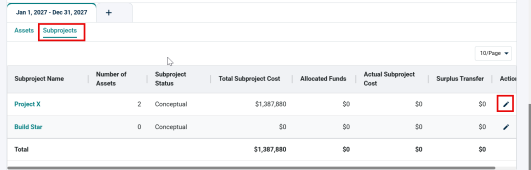
Open the Project Information Page and go to Subproject summary table.
-
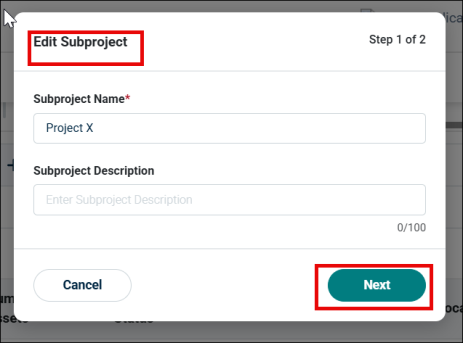
Click the Edit icon on the Subproject summary tab.
-
Modify the Subproject Name or Description.
-
Click Next and Save.
Add General / Virtual Asset to Subproject
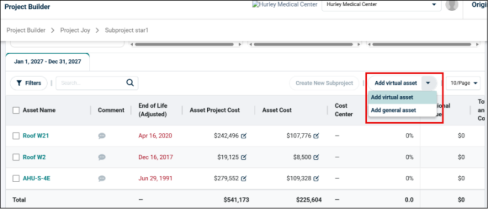
You can add a General or Virtual asset directly to a Subproject from the Subproject Information page.
-
Open the Subproject Information page.
-
Select required asset type from Add Asset dropdown.
-
Virtual Asset
-
General Asset
-
For Virtual Asset:
-
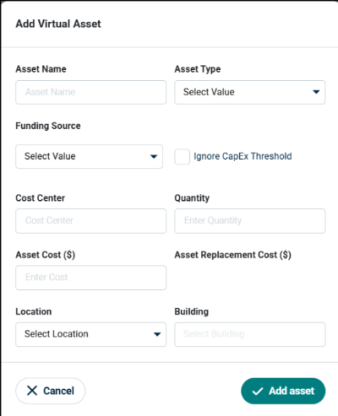
Enter the following asset details, to Add Virtual Asset:
- Asset Name
-
Asset Type
-
Funding Source
NOTE Check box, if you want to Ignore CapEx Threshold.
-
Cost Senter
-
Quantity
-
Asset Cost
-
Asset Replacement Cost
-
Location
-
Building
-
Click Add asset.
For General Asset:
-
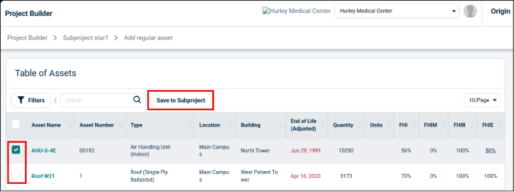
Click on Add general asset.
-
Select the required asset from the Table of Assets.
-
Click on Save to Subproject.
Things to Remember:
-
An asset can belong to one Subproject at a time, if it is already added to a Subproject, it moves automatically.
-
Also, an asset cannot be added to a Subproject if it is Committed or Completed.
-
Adding an asset also updates cost automatically at both Subproject and main project level.
Remove Asset / Move Asset to Another Subproject
You can remove an asset from a Subproject and return it to the main project’s unassigned assets or move it to another Subproject. Both this actions trigger automatic cost recalculation.
Steps to Remove Asset
-
Open the Subproject Information page.
-
In the Asset List, select the required assets which you want to remove.
-
Click Remove.
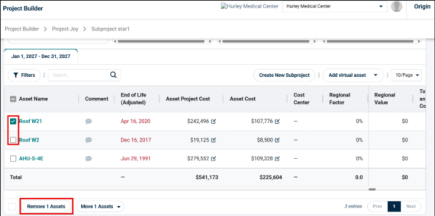
This removes the asset from Subproject and move it back to the main project asset list.
Move an asset to another Subproject
-
Open the Subproject Information page or the Project Information page.
-
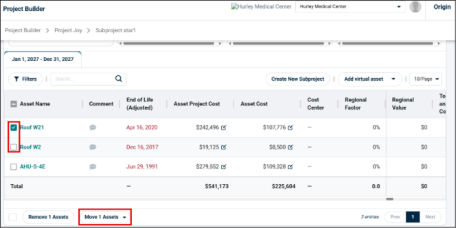
Select the required assets which you want to move.
-
Click Move to Subproject.
-
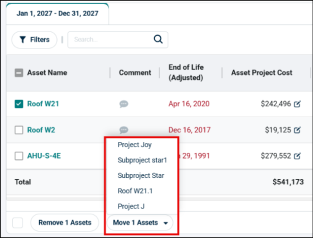
Select the target Subproject where you want to move the asset.
-
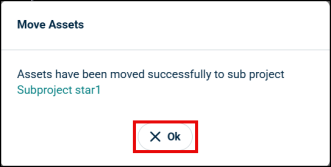
Confirm the move.
Things to Remember:
-
Only Subprojects in Conceptual status are available as move targets.
-
An asset can belong to only one Subproject at a time.
-
Removing all assets from a Subproject de-allocates its funds automatically.
-
You cannot remove or move assets when the Subproject status is Committed or Completed.
-
Costs are recalculated automatically after each remove or move action.
Delete a Subproject
Subprojects can be deleted from the Subproject List when they are no longer needed. When deleted, all associated assets are removed from the project, and the cost is recalculated accordingly.
-
On the Subproject List, locate the Subproject to delete.
-
Click the Delete icon from the Action column.
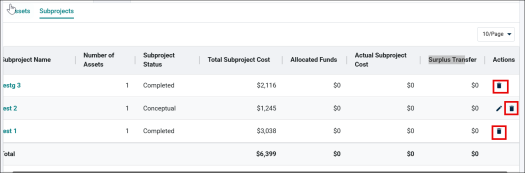
-
A Warning: Delete Subproject pop-up will show on the screen, click OK to confirm.
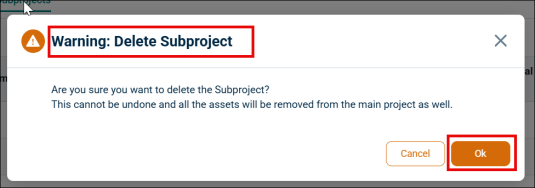
-
Subproject will get deleted and a success message will appear on the right bottom of the screen.
Things to Remember:
-
A Subproject cannot be deleted if it is in Completed status or if it is Locked (unless the current user is the owner of the locked Subproject).
-
A locked Subproject restricts Edit and Delete actions to the Subproject owner only, regardless of admin role. Locking is controlled at the project level, it cannot be changed from the Subproject page.
-
When a Subproject is deleted: all assets within it are removed from the project entirely; the total Subproject cost is removed from the main project's cost summary; any allocated funds are automatically de-allocated and returned to the main project's available funds. The Subproject List and the plain asset view on the Project Information page update immediately.
-
When the main project itself is deleted, all associated Subprojects are deleted automatically. Allocated budget is moved within the same year, and any frozen budget is unfrozen.
-
Only the Subproject owner can delete the Subproject.
Create Subproject from Subproject Information Page
A new Subproject can also be created directly from the Subproject Information Page of an existing Subproject, without navigating back to the main project.
-
Open the existing Subproject Information Page.
-
Select the assets you want to add to new Subproject.
-
Then click the Create New Subproject button at the top of the asset details table.
NOTE The Create New Subproject button remains disabled unless you select any assets to be added.
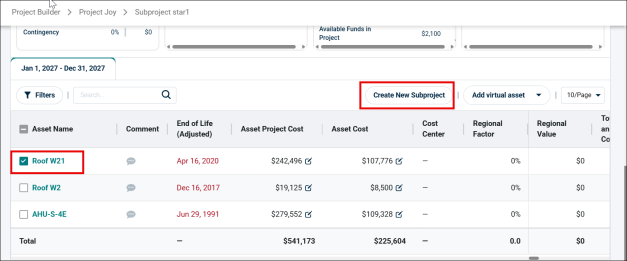
-
Create Subproject wizard will open.
-
Complete the steps as mentioned in Create a Subproject.
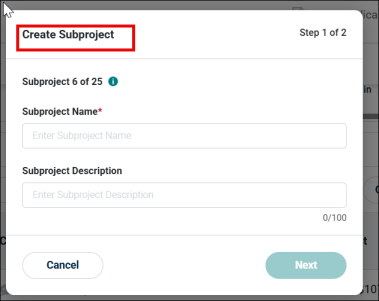
Things to Remember:
-
Assets can be selected from the current Subproject or from the main project during this creation flow.
-
All the same rules apply with standard Subproject creation, asset uniqueness, required name, optional category.
Export to Excel / PDF
The Subproject Information Page can be exported to Excel or PDF format for external reporting, official documentation, or sharing with stakeholders.
Steps
-
Open the Subproject Information Page.
-
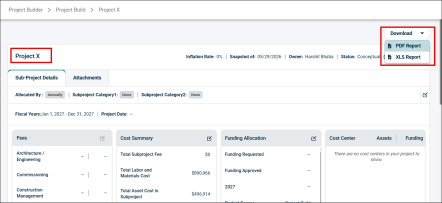
Click the Download dropdown.
-
Select either XLS Report or PDF Report from the dropdown.
-
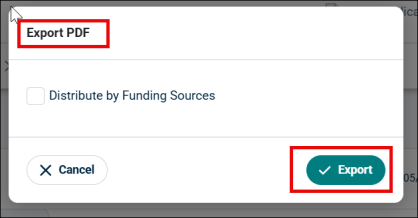
If you want to export to PDF, check the box against Distribute by Funding Sources and click Export.
-
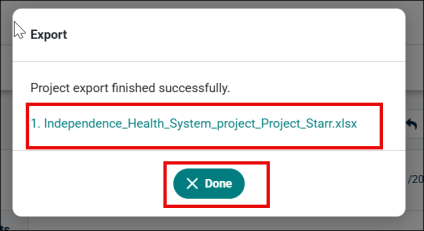
Click the report name in the confirmation pop-up and then click Done to close.
-
If you want to export XLS, then just click XLS Report from dropdown, it will take some time and give you the xls file link.
-
You can also click Cancel to cancel the download.
Things to Remember:
-
Exported file name format: Organization Name_Sub_Project Name.xlsx or Organization Name_Sub_Project Name.pdf
-
Content included in the export: Subproject Summary, Subproject Details, Subproject Fee, Subproject Cost Summary, Subproject Attachments, Subproject Assets, Actual Subproject Cost and Surplus Amount Transferred (if applicable, post-completion).
-
If an error occurs during export: "Unable to Export the report, please try again."
Add / Edit / Delete Attachment to Subproject
Files and documents like project documentation, contracts, reports, or any relevant reference materials can be uploaded to a Subproject as attachments.
Steps — Upload Attachment
-
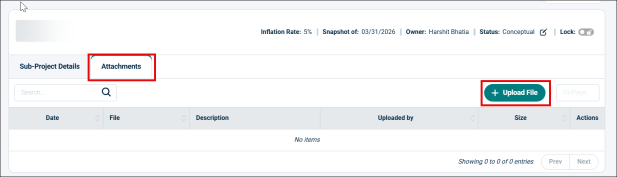
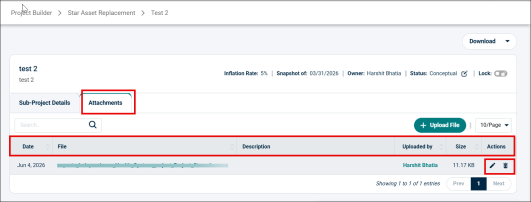
Open the Subproject Information Page > Attachment tab.
-
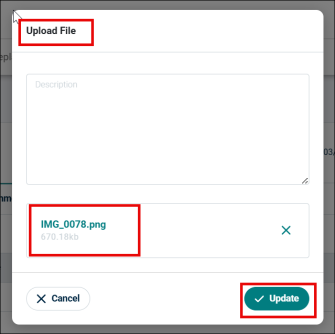
Click +Upload File.
-
In the Upload File wizard, either drag & drop a file or you can also browse & select a file.
-
Add an optional Description for the file.
-
Click Update.
-
Uploaded file will appear in the table under Attachments tab.
-
You can also edit the description for the uploaded file by clicking the Edit icon next to it.
-
To delete the attachment, click the Delete icon.
Things to Remember:
-
A description can be added to each attachment but is optional.
-
Attachments are visible in the exported Excel and PDF reports.
-
Attachment management follows the same role-based permissions as the rest of the Subproject.
